
Setup Payroll Periods
At the start of each tax year, you will need to set up your payroll periods. This article covers how to do this and what to do if you see a warning about your pay period pay date not falling within the first tax month of the tax year.
In this article:
Warning about pay period pay date not falling within the tax month
If you wish to start using the payroll upload module partway through your tax year, then you can do this by simply setting your 'first tax month' to be the month you wish to begin.
Setting up Payroll Periods
Within the Payroll Upload module, select the tax year, then click the 'Setup Payroll Periods for Tax Year'
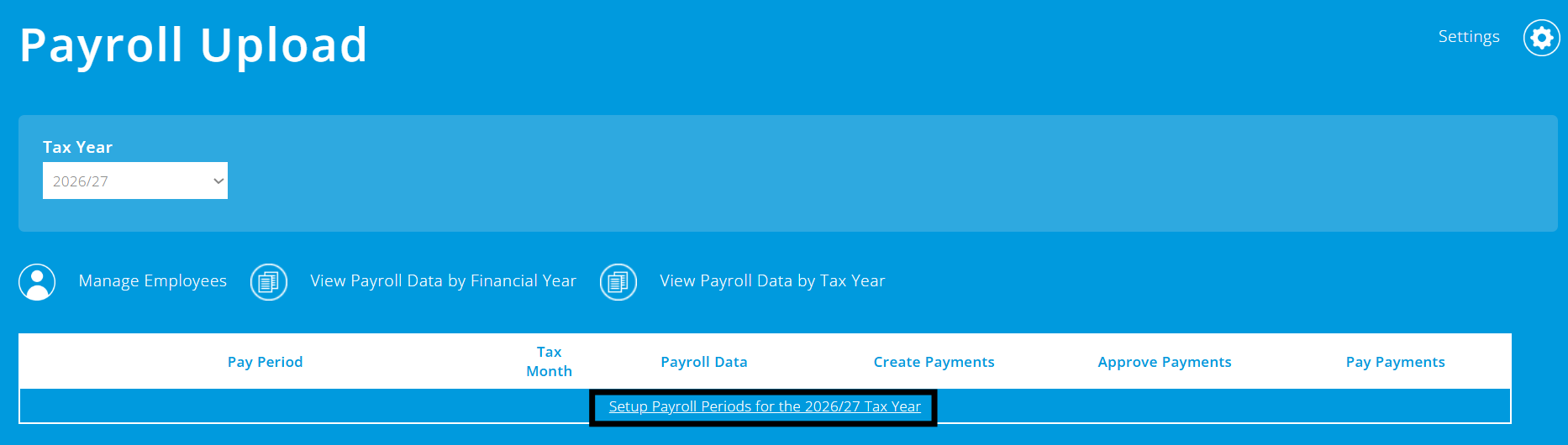
In the payroll periods screen, select the 'Set Up Payroll Periods' button

Then in the pop-up that appears, enter the details required:
- First Tax Month - typically this will be month 1, but if you wish to start using the payroll module from part-way through the tax year, then you can update this
- Pay Period Start Date - often this is the first of the month, with employees paid for the work they do within the calendar month, but if this is different for your charity, then you can update this
- Default Pay Date - this is the day you typically pay employees, either within the month or in the subsequent month
- Weekend Pay Date - where this pay date falls on a weekend, typically employees are paid on the weekday before (e.g. Friday), but if this isn't the case for your charity, then this can be updated

The default pay date set can be overridden for any given month when processing your payroll transactions
Warning about pay period pay date not falling within the tax month
When setting up your payroll periods for a tax year, if you see a warning message, this means there is an issue with the information you have entered.
Here is an example that illustrates this:
- First Tax Month - this has been selected as tax month 1 (Which runs 6th of April 2025 to the 5th of May 2025)
- Pay Period Start Date - this has been selected as the 1st of April 2025
- Default Pay Date - this has been selected as the 10th of the following month (which means a pay day of the 10th of May)
The reason for the warning message within ExpensePlus is that the pay date of the 10th of May falls outside of tax month 1 (which runs from the 6th of April 2025 to the 5th of May 2025), which isn't allowed by HMRC.

To help you better understand the Payroll module as a whole, please visit the module overview page.