
How do I record Gift Aid income from HMRC? (claimed within ExpensePlus and auto-accrued)
This article explains how to record Gift Aid income or receipt of Gift Aid in ExpensePlus:
- when creating accounts on an accruals basis (and auto accruals are enabled)
- when creating Gift Aid claims within ExpensePlus.
Where auto-accruals are disabled, or Gift Aid is claimed outside of ExpensePlus, please see this separate support article.
In this article:
Claiming Gift Aid
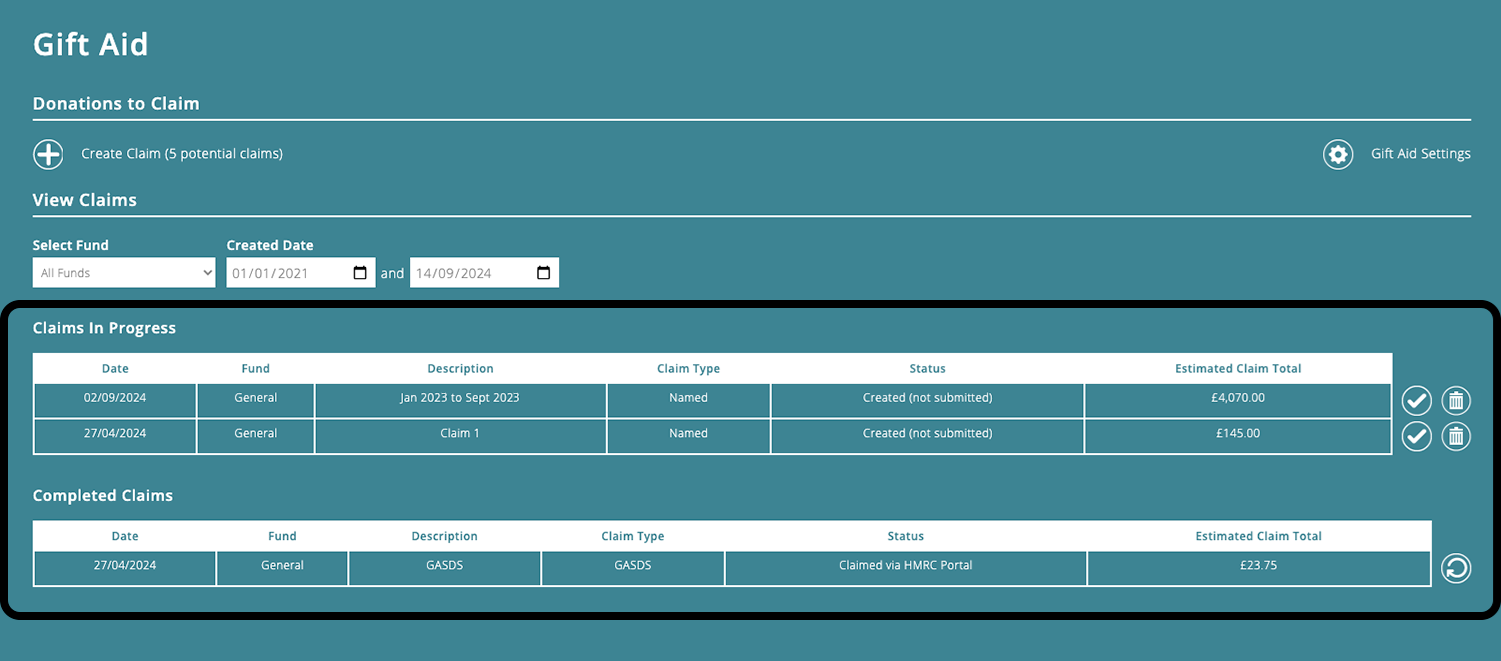
When claiming Gift Aid, ExpensePlus creates separate claims for each fund, making it easy to allocate payments from HMRC to the correct fund.
Where restricted donations are given, as well as the donation needing to be recorded to the restricted fund that it relates to, any Gift Aid also needs to be recorded to the same restricted fund (unless the donor has specified otherwise).
How often should I claim Gift Aid?
Some organisations claim Gift Aid monthly, quarterly or yearly. While the frequency with which you claim Gift Aid is up to you, the process within ExpensePlus is super straightforward.
We would recommend claiming Gift Aid monthly (once the transactions for the previous month have been reconciled), and this is typically what most churches and charities do.
Gift Aid often accounts for a significant part of an organisation's income. Claiming Gift Aid monthly not only helps with cash flow, but it keeps both budgeting and reporting straightforward.
Once you have submitted your Gift Aid claims and are waiting for the payment from HMRC, you can view the accrued income (accounts receivable) in the creditors and debtors report.
Typically, GASDS is either claimed monthly as well, or annually at the end of the tax year - again, the frequency is up to you.
ExpensePlus only allows each donation to be part of one Gift Aid claim, regardless of the frequency at which Gift Aid is claimed.
Accruing Gift Aid income
If you create accounts on a receipts and payments basis, skip to the next section (as this section isn't relevant for your charity).
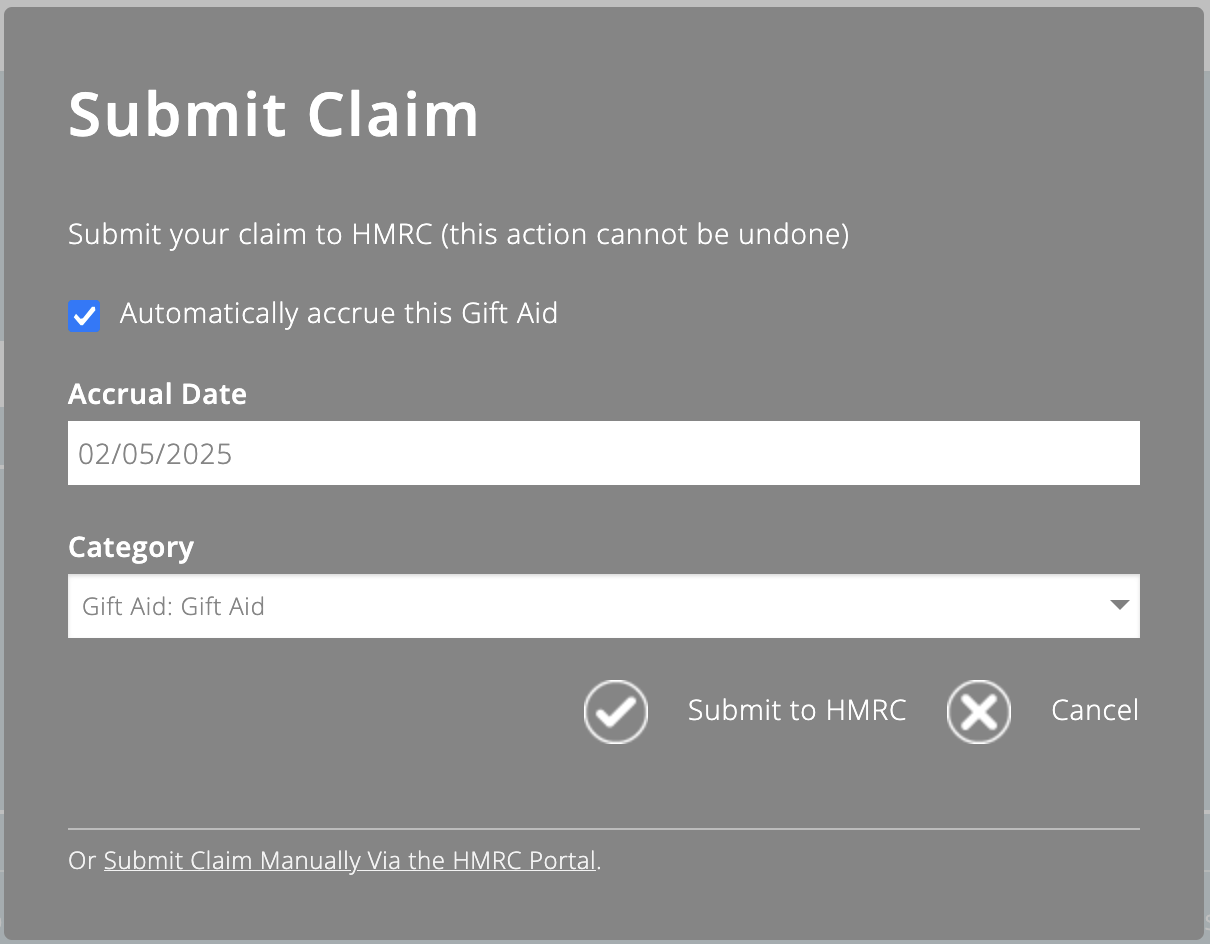
Where auto-accruals are enabled, ExpensePlus will automatically accrue Gift Aid income for you as part of the process flow for submitting a Gift Aid claim (see the pop-up shown below).
The accrual date in the pop-up will default based on the last date of donation within the claim, but this can be custom-set.
When creating accounts on an accruals basis, Gift Aid is typically accrued to the date the donations were given (rather than the date that the money was claimed, or received from HMRC).
Gift Aid income will automatically accrue based on the date set, and the accrual will be shown on the balance sheet.
Reconciling auto-accrued Gift Aid income
Where Gift Aid income from HMRC has been auto-accrued, the accrual (accounts receivable) does not appear on the right-hand table of the bank reconciliation screen.
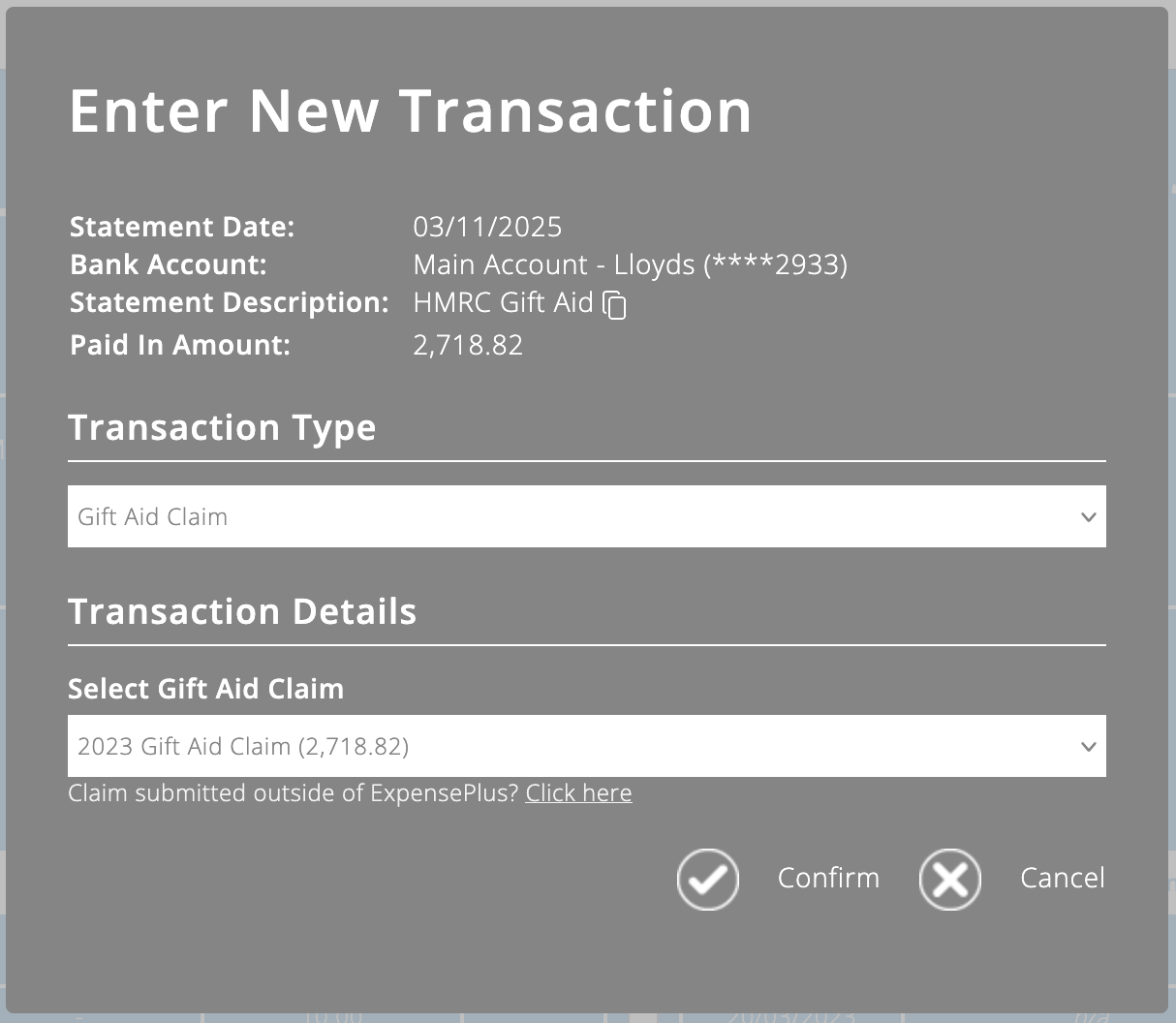
Instead, to match the bank transactions, click on the income transaction in the left hand table of the bank matching screen or on the plus icon to the right of it.
In the pop-up that appears, in the section called 'Transaction Type', you should select the income type of 'Gift Aid Claim'.
Then in the 'Transaction Details' section, select the Gift Aid claim the income relates to.
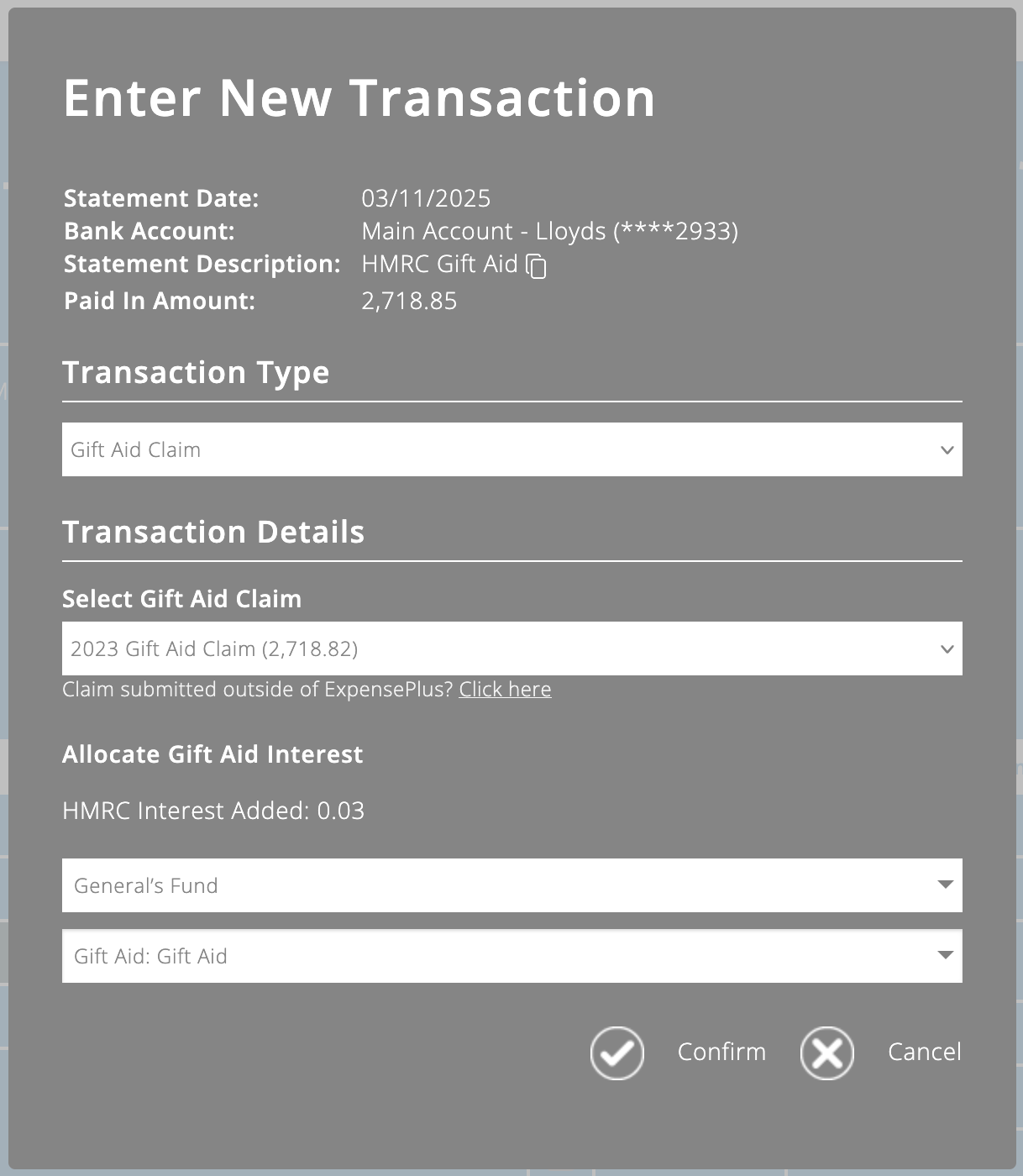
If any interest has been added by HMRC, you can allocate this amount within the same pop-up.
Where Gift Aid has been auto-accrued, it's really important that it's not allocated as 'Other Income' as this will result in the income being counted twice, and the balance sheet wrongly showing an outstanding Gift Aid accrual.
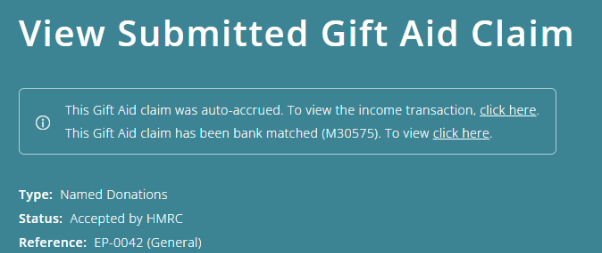
You can then view and drill into both the income transaction and the bank match that relate to this Gift Aid claim, within the Gift Aid module.
Splitting Gift Aid income
Gift Aid claims in ExpensePlus are created by fund, so typically you won't need to split Gift Aid income.
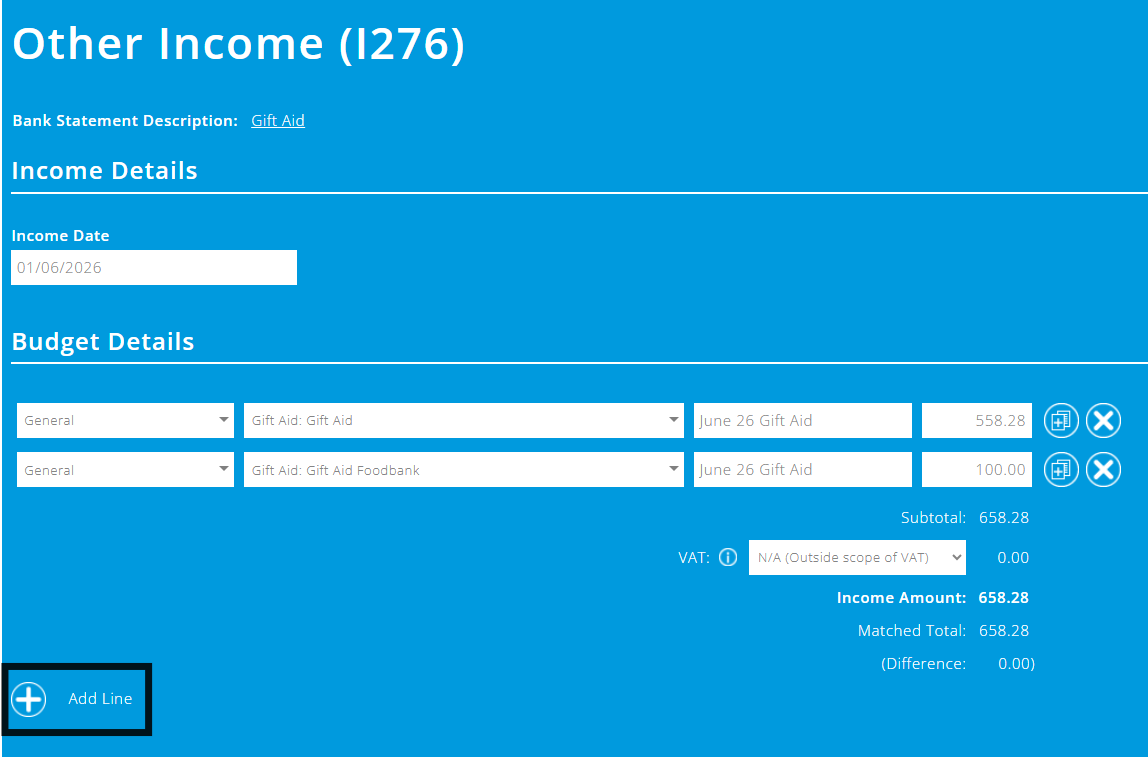
However, if you have a restricted fund that contains income with different restrictions, then you may need to split Gift Aid income to ensure that the income is allocated to the specific categories it needs to be allocated to.
To do this, once you've reconciled the Gift Aid income, click on the income transaction to split the transaction using the 'Add Line' button.
You cannot split a Gift Aid claim among categories that are within different funds.
To better understand the Bank Reconciliation module, please view the module overview video here.