
Check opening financial year balances
The balances in your balance sheet (including fund balances) carry forward between financial years, so it's really important you ensure your opening financial balances for the year for which you're creating accounts match the closing balances of your submitted accounts for the prior financial year.
Use the Year End Accounts module within ExpensePlus not only to create year-end accounts much more easily and quickly, but also to avoid any issues with your financial year balances in ExpensePlus not matching your submitted accounts.
In this article:
How to check if your financial balances are correct
If you create accounts on an accruals basis
Within the balance sheet report:
- In the 'Financial Year' dropdown, select the financial year you are creating accounts for.
- Select 'rounding' to be in whole currency units.
- Compare the 'prior year' column with the balance sheet in your submitted accounts of that year.
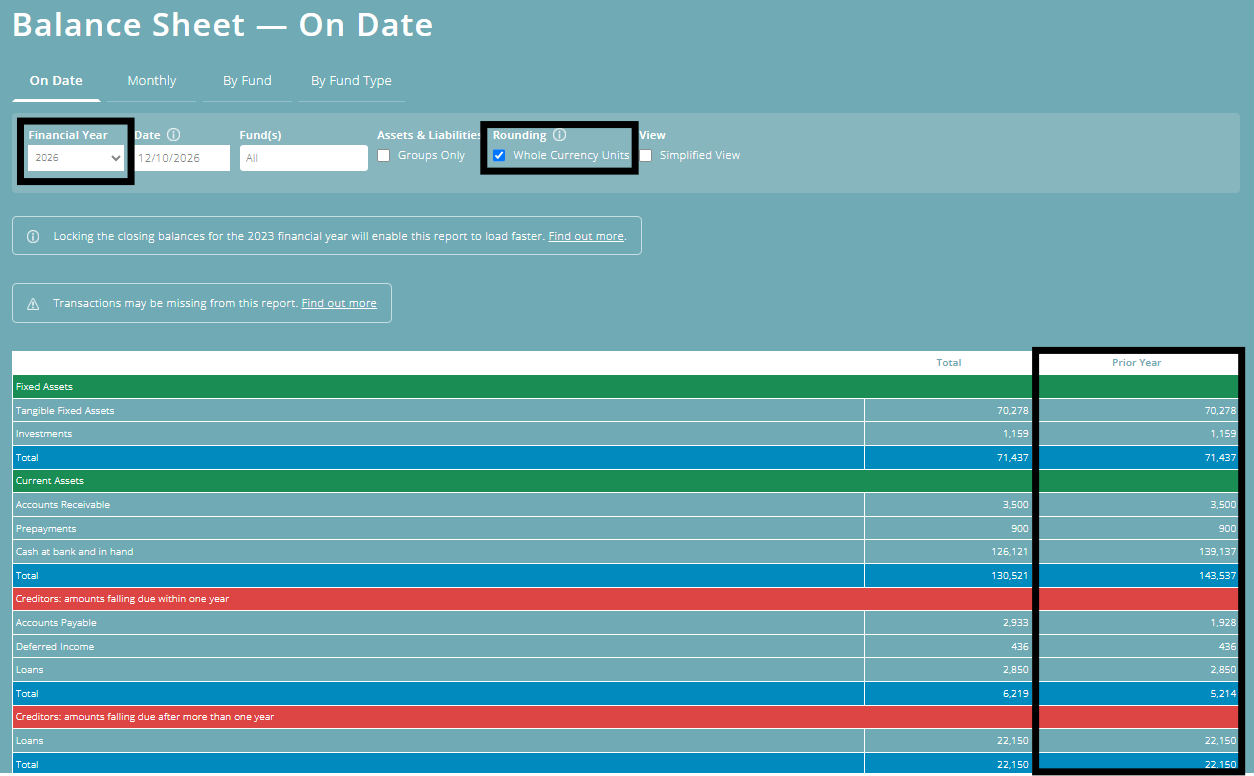
You will need to check that each figure matches your prior year accounts, including fund balances (don't worry about £1 rounding issues).
If you create accounts on a receipts and payments basis
In the Asset & Liability Statement:
- In the 'Financial Year' dropdown, select the financial year you are creating accounts for.
- Compare the 'prior year' column with the Asset and Liability statement in your submitted accounts of that year.
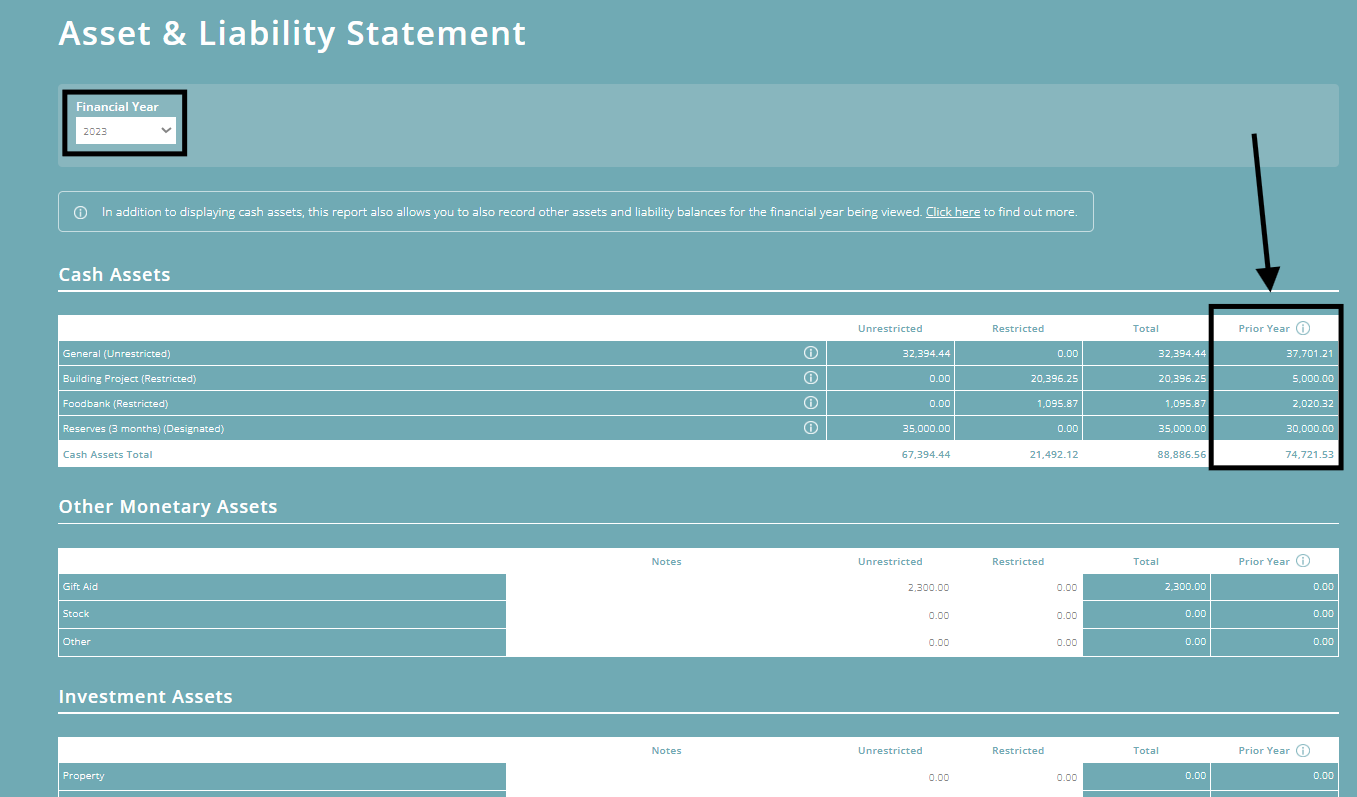
You will need to check that each figure matches your prior year accounts, including fund balances (don't worry about £1 rounding issues).
What to do if there is a discrepancy
If this is your first financial year using ExpensePlus, you can correct any discrepancy by simply updating your opening balances to match your prior year's closing balances. To find out more about how to do this, see our Help Guide article on Setting up opening fund balances.
If this isn't your first financial year using ExpensePlus, then this means either:
- Your accounts were created using data from another source (if this was the case, then we'd highly recommend deleting that financial year from ExpensePlus - contact support@expenseplus.co.uk for more information), OR
- Your accounts were created using data from ExpensePlus, but adjustments were made when creating your accounts that weren't recorded within ExpensePlus.
If the issue is that adjustments have been made in your accounts, but not in ExpensePlus, then you will need to work with the person who created your accounts to get a breakdown of the adjustments made and then add these to ExpensePlus.
It's really important you do this. That's because if your closing financial balances in ExpensePlus for the prior year don't match with your submitted accounts, then your opening financial balances for the year for which you're creating accounts will be incorrect.
Where multiple adjustments have been made, each adjustment needs to be added within ExpensePlus (they can't be added in bulk).
If you need additional help, or it's not possible to get hold of a full breakdown of the adjustments, then you may wish to consider booking a 1:1 support session where one of our team can assist you in getting your closing financial balances for your prior year to match the balances in your submitted accounts.
Before signing off on year-end accounts, always ensure that:
- within those accounts, the balances in your balance sheet (including fund balances) match the figures within ExpensePlus, and
- where adjustments have been made, these are added into ExpensePlus.
Or better still, use the Year End Accounts module within ExpensePlus which will avoid issues with your financial year balances in ExpensePlus not matching with your submitted accounts!