
How can I view my debtors and creditors?
This article explains the different reports you can use to view your debtors and creditors, and the differences between them.
In this article:
ExpensePlus has several reports that allow you to view your debtors and creditors, in slightly different ways.
Balance Sheet
The Balance Sheet gives organisations that account on an accruals basis an overview of their debtors and creditors:
- Accounts Receivable (money owed)
- Prepayments (money paid in advance)
- Accounts Payable (money you owe)
- Deferred Income (money received in advance)
The balance sheet isn't a financial report that is used for receipts & payments accounting.
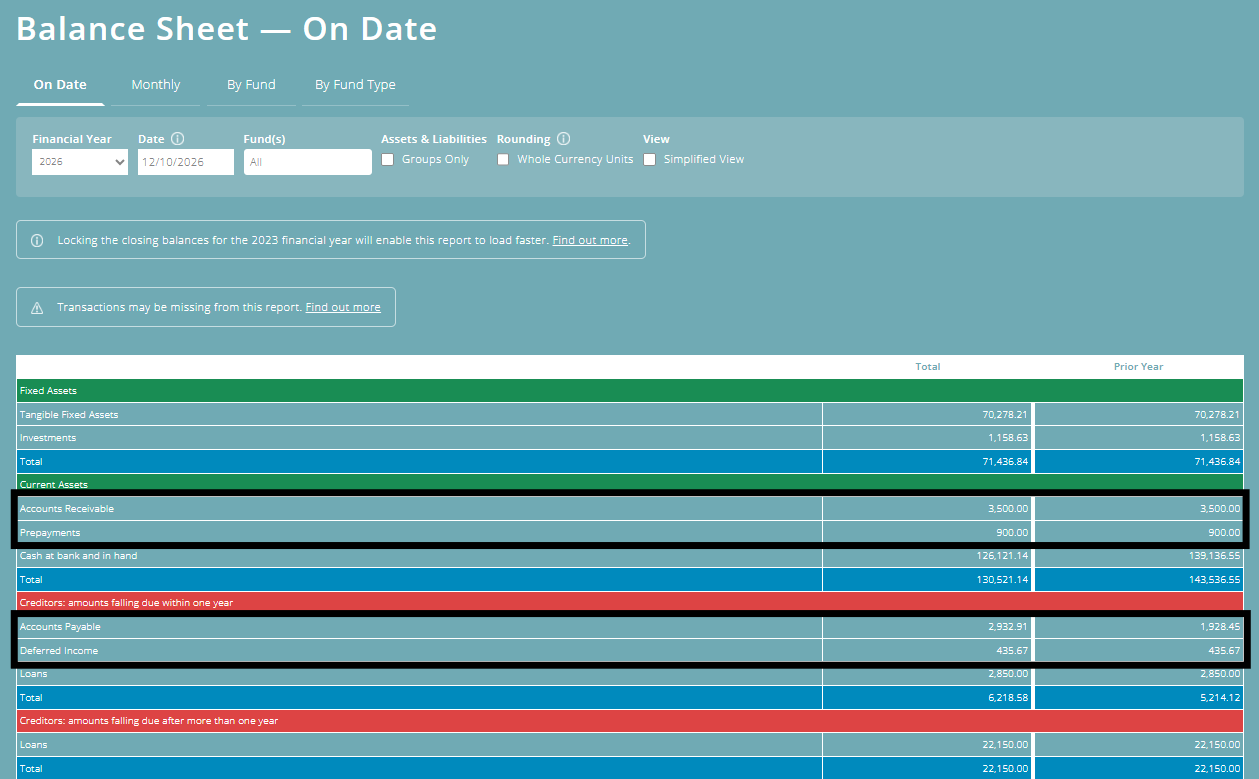
The balance sheet will show the total value of your organisation's debtors and creditors, and allows you to drill down into these figures in more detail by taking you to the Debtors & Creditors Report.
For more information on the Balance Sheet and how you can use it, please see this helpguide article.
Debtors & Creditors Report
The Debtors & Creditors Report will show all of your debtors and creditors in more detail. This includes all auto-accruals and all manual adjustments that have been entered.
You can view each type of debtor or creditor by a particular fund, and you can view the report as:
- 'Outstanding Only' to view current debtors and creditors, or
- 'All (by Year)' to include all accruals for your current financial year.
This report is drillable, allowing you to view each debit/credit and any attached paperwork that has been uploaded.

Adjustments module (manual debtors and creditors)
Within the Adjustments module, you can view and drill into any manual adjustments that have been recorded. To view the Manual Debtors & Creditors report, select the type of debtor/creditor you wish to view from the table shown below.

You can filter each type of debtor or creditor by a particular fund, and you can view the report as:
- 'Outstanding Only' to view current manual adjustments for creditors and debtors, or
- 'All (by Year)' to include all manual adjustments for your current financial year.
This report will only show your manual adjustments - any auto-accruals will not be visible in this screen.

To better understand the Finance Reports module, please view the module overview video here.