
How to reconcile Charities Trust income
This help guide article covers how to reconcile Charities Trust income.
In this article:
The two options for reconciling Charities Trust income
Option 1: Splitting payouts against donors manually using the 'mixed income' option
Option 2: Splitting payouts against donors automatically by uploading payout transactions
The two options for reconciling Charities Trust income
Within ExpensePlus there are 2 choices for how to reconcile Charities Trust income (you will need to pick the one that will work best for you):
- Option 1: Splitting payouts against donors manually using the 'mixed income' option - This is typically the best and quickest option where you have only a few people who give via Charities Trust, since it involves manually recording the different donations that make up the payout received each time.
- Option 2: Splitting payouts against donors automatically by uploading payout transactions - This option is typically best where you have more than 5 people giving via Charities Trust, as it saves having to manually record donations.
You should not reconcile payouts from Charities Trust as either 'Named Donation' or 'Other income'. Charities Trust charges as admin fees, so recording the net amount that arrives in your bank account simply as income is incorrect from an accounting perspective. Instead, choose one of the above options - both of which enable you to ensure the gross amount of income collected via Charities Trust is recorded as income, and the Charities Trust fees are correctly recorded as expenditure.
Option 1: Splitting payouts against donors manually using the 'mixed income' option
You will need to set up Charities Trust as a donation method - click here to find out how to do this.
Reconciling Charities Trust payouts on your main bank account statement
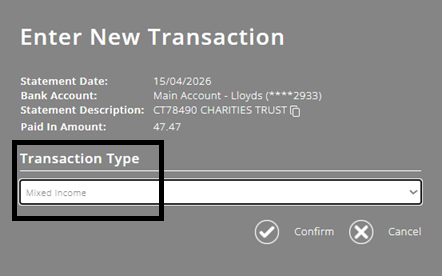
When reconciling your uploaded bank transactions, click on the payout from Charities Trust on the left-hand table of your match transactions screen, then, within the pop-up that appears, select the transaction type 'Mixed Income'.
Within the 'Mixed Income' screen, enter the details for the transactions in the Charities Trust payout:
- Named Donations - for any named donations;
- Less fees - for the total of the fees deducted.
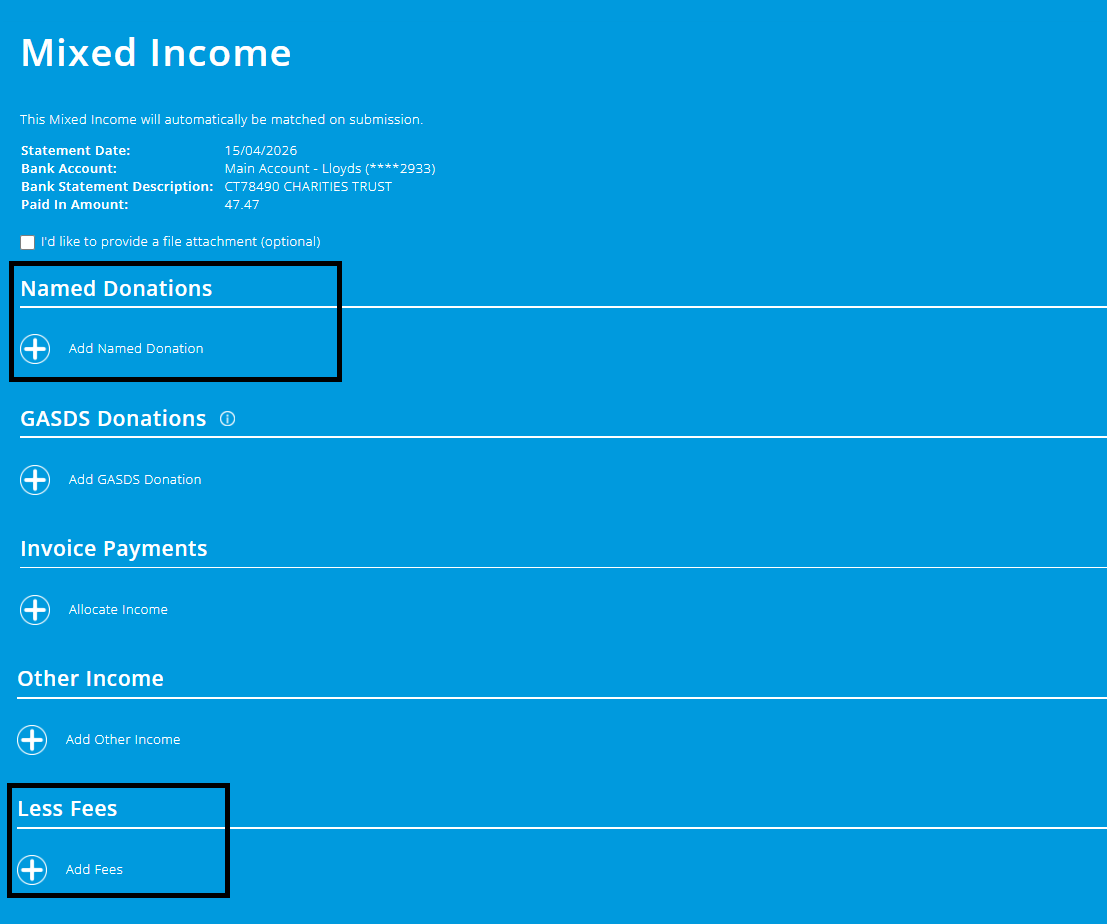
When reconciling Charities Trust donations:
(1) You should always ensure the 'donation method' is set to 'Charities Trust'.
(2) You should not record any donations as 'GASDS Donations'
Where donors give anonymously, you may wish to create a donor called 'Anonymous Charities Trust Donations'
Option 2: Splitting payouts against support donors automatically by uploading payout transactions
Reconciling Charities Trust payouts on your main bank account statement
When you reconcile your uploaded bank transactions, click on the payout from Charities Trust on the left-hand table of your match transactions screen, then, in the pop-up that then appears, select the transaction type as 'Payout from Payment Processor', then select your Charities Trust account.
You will first need to set up Charities Trust as a payment processor account - click here to find out how to do this.

This will temporarily make your account balance of your Charities Trust go negative (it should have been zero previously).
Downloading Charities Trust transactions (from Charities Trust)


Select the criteria (as shown above), then click 'Download statement' and export as .csv.
Once you have downloaded the CSV file, don't edit or resave the file, or change the file format from .CSV to .XLS/.XLSX, as it may stop the file uploading properly to ExpensePlus
Importing Charities Trust transactions
Within the bank reconciliation screen, select your Charities Trust account and click 'Upload transactions'.
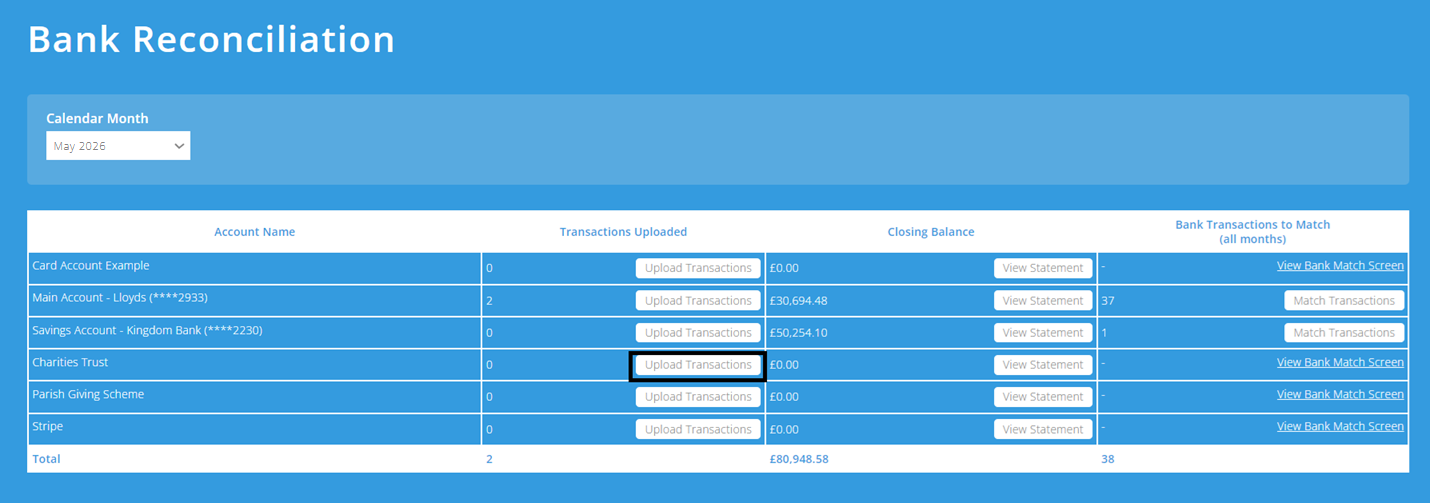
The upload process works similarly to a regular bank account, except that each line on the statement will show as two transactions within ExpensePlus - one relating to the income and the other to the transaction fee deducted.
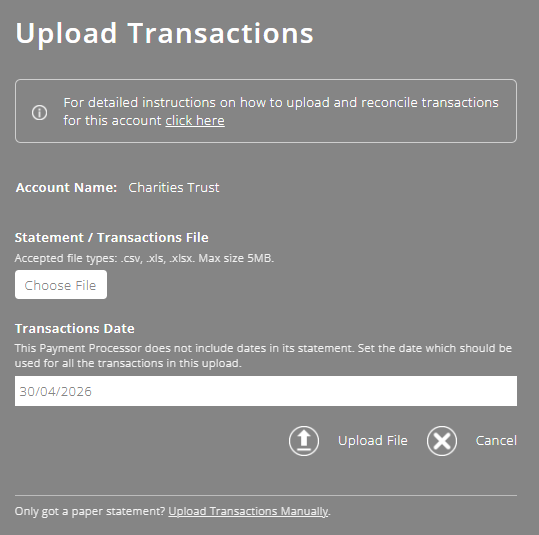
As Charities Trust transaction files do not include a date column, you will be asked to select a date when uploading your transaction file. This will be used as the donation date for all transactions within the file you upload.
Once payout transactions are uploaded, your Charities Trust account balance should return to zero. That's because the net total of the transactions, in the payout report you've just uploaded into this account, should exactly match the amount paid out as the payout went from this account into your bank account.
If your latest account balance for your Charities Trust account within ExpensePlus is not zero, we highly recommend you fix this issue BEFORE you reconcile transactions - please see this separate helpguide article
Reconciling Charities Trust transactions
The bank matching process for Charities Trust transactions works similarly to a regular bank account - with the ability to remember and quick-match transactions.
This means that once you have reconciled Charities Trust transactions for the first month, you won't need to manually enter transactions for future months - instead, you can simply click the 'quick match income' button at the top of the match transactions screen.
Where transactions haven't been previously reconciled and auto-remembered:
Named Donations
(1) click on the transaction in the left-hand table of the match transactions screen;
(2) in the pop-up that appears, select the 'Named Donation' option and enter the details.
When reconciling Charities Trust donations:
(1) You should always ensure the 'donation method' is set to 'Charities Trust'.
(2) You should not record any donations as 'GASDS Donations'.
Where donors give anonymously, you may wish to create a donor called 'Anonymous Charities Trust Donations'.
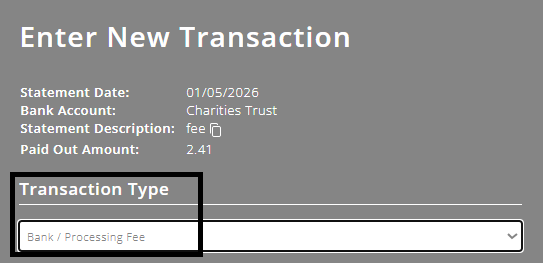
Bank / Processing Fee
To reconcile Charities Trust fees:
(1) click on the transaction in the left-hand table of the match transactions screen;
(2) in the pop-up that appears, select the 'Bank / Processing Fee' option and enter the details.
Why is my Charities Trust statement not uploading?
- First Name (each transaction must contain a first name)
- Last Name (each transaction must contain a surname)
- Total Donation to Charity (each transaction must contain a non-zero amount)
- Admin Charge (each transaction must contain a transaction fee)
Note that:
- Additional columns can be present but won't be imported;
- The file format should be .CSV
The Charities Trust transaction file doesn't include transaction dates. To overcome this, ExpensePlus will ask you to specify a 'date' as part of the upload process - you just need to ensure the month you select matches the month the donation relates to.
To better understand the Bank Reconciliation functionality, please watch the module overview video here.