
How can I create a purchase order?
This article describes how you can create a purchase order in ExpensePlus.
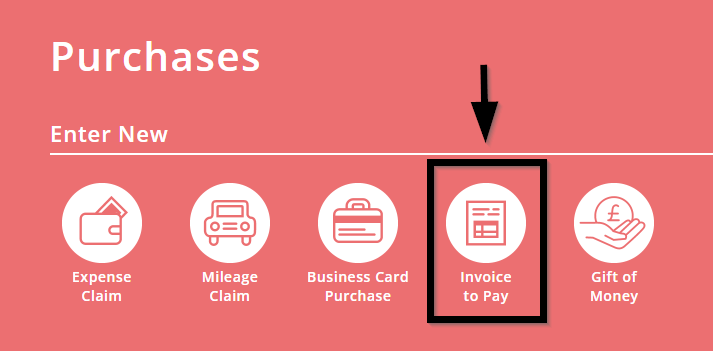
Enter an 'Invoice to Pay' to create a purchase number
On the purchases screen, enter an invoice to pay, choosing the supplier, and entering the fund, category, description and amount.
In the final section titled Invoice, don't upload an invoice.
Instead, click 'submit'.
A popup will appear with the title Receipt Upload.
In the popup, select the option 'upload receipt later'.
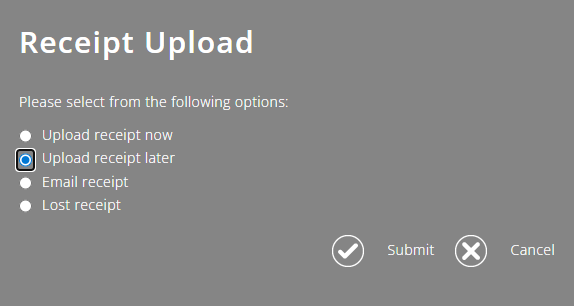
This will create the purchase for you within ExpensePlus, with a purchase number, e.g. R1234.
You can then send this purchase number to the supplier as the purchase order.
Upload and pay the invoice
Later, when the supplier issues you the invoice, find the existing purchases on the purchases screen.
In the final section titled Invoice, upload the invoice file and click 'submit'.
The purchase will then move through the ExpensePlud process flow from the receipt check screen, to approvals and payments like other purchases.
To help you better understand the Purchasing module, please visit the module overview page here.