
How do I add a new user, using the same email address as a previous user?
This article explains how you can add a new ExpensePlus user, who uses the same email address as a previous ExpensePlus user. Note that it is not possible for two current users to have the same email address in ExpensePlus.
The most common example of when you would want a new ExpensePlus user to have the same email address as a previous user, would be if a member of your staff team leaves, and the email address they have used (e.g. finance@mycharity.com or admin@mycharity.com) is taken on by the new staff member.
We'd strongly suggest you DON'T simply update the user details, keeping the email address and changing the name from the previous user's name to the new user's name. That's because this would update the user name on all previous transactions and actions associated with that email address. This would provide you with inaccurate details for your accounts.
Change the previous user's email address in ExpensePlus
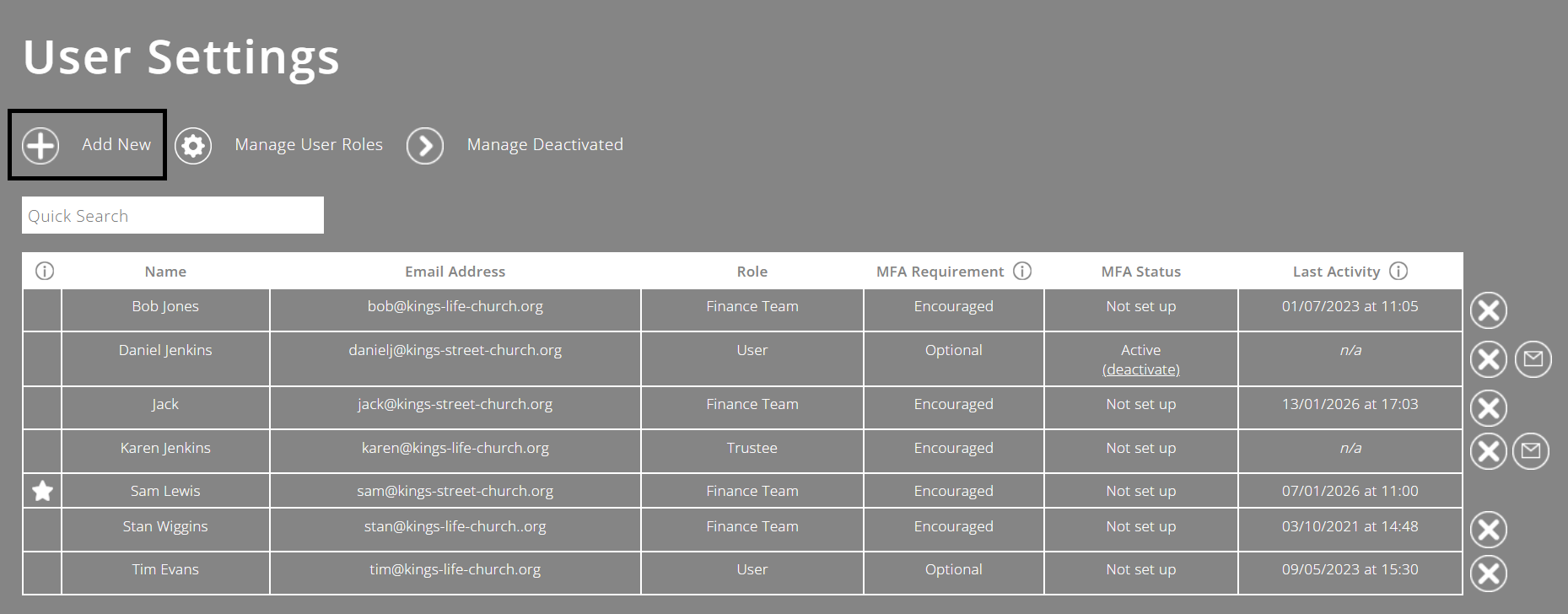
The way to give your new user access using the existing email address, is to first change the email address of the previous user to something else. This can be a fictional email address if the user will no longer have access to your ExpensePlus account e.g. changing the email from finance@mycharity.com to OLDfinance@mycharity.com. You can do this within the previous user's User Profile, which can be accessed from the User Settings screen.
Set up your new user
The email address (e.g. finance@mycharity.com) is now available. You can now add a new user in your User Settings screen and use the email address for this new user.
To help you understand how to customise ExpensePlus, watch the module overview video here.