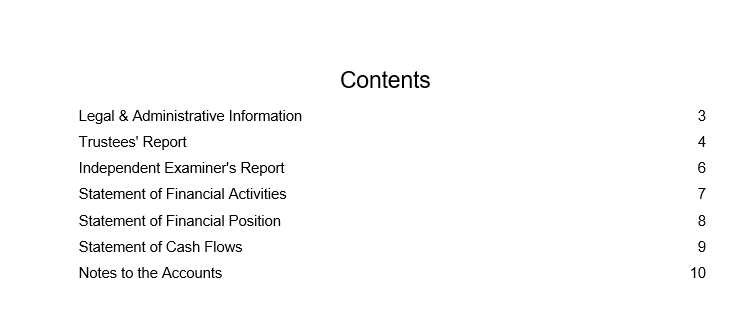
How to update the page numbers on the table of contents for downloaded year end accounts
This article explains how to update page numbers on the table of contents page in the Word document when you have downloaded your year end accounts from ExpensePlus.
In this article:
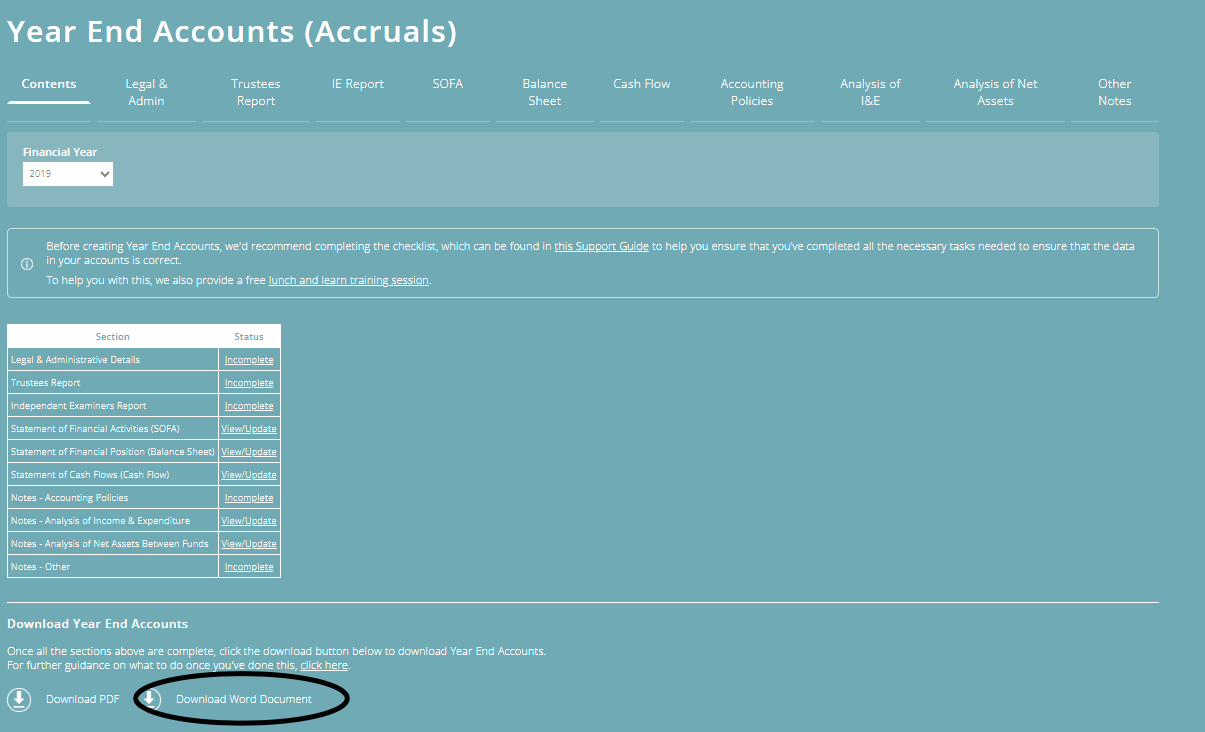
Downloading the Word document for your year end accounts
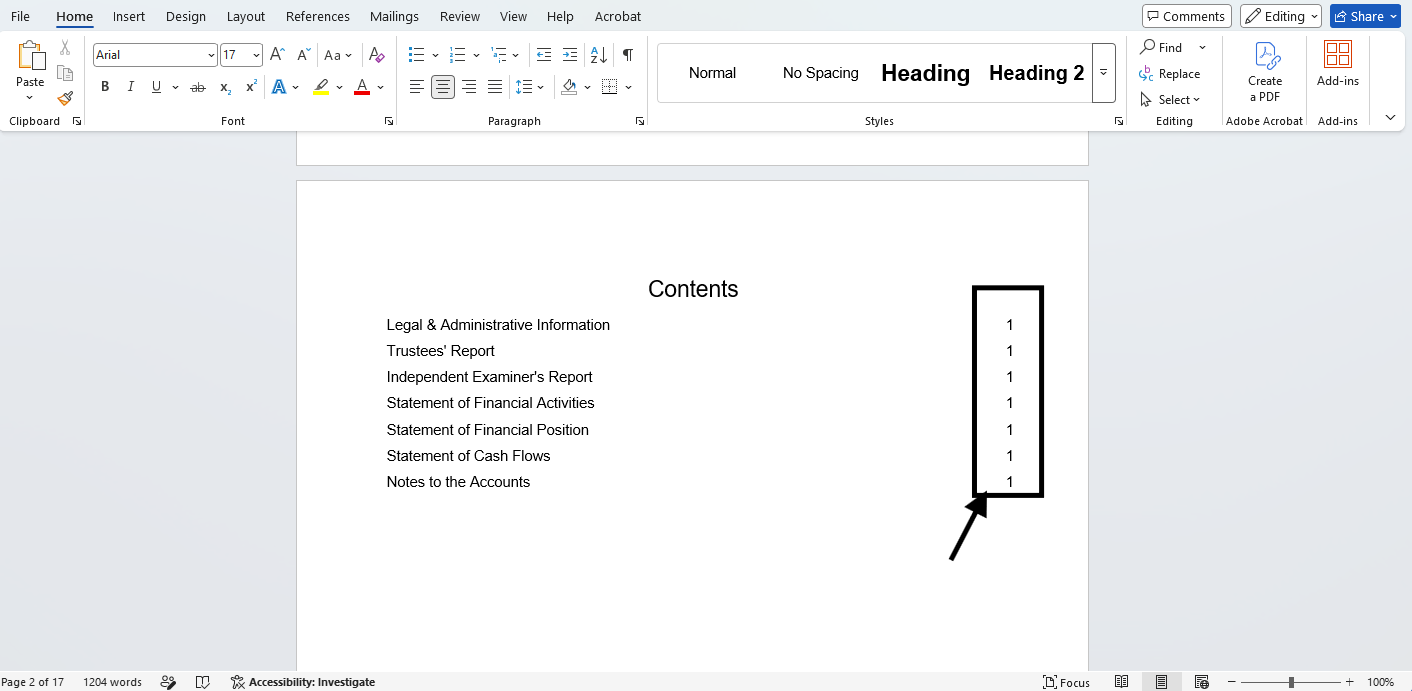
When you download your year end accounts, ExpensePlus automatically adds page numbers and a table of contents tot he document.
However, you may find that when you open the file, the page numbers do not display correctly on the table of contents.
If downloading your accounts as a Word document (rather than as a PDF file), you can edit the Word document.
Updating the page numbers for the table of contents
The table of contents is easy to update in Word, so you can display the correct page numbers in your year end accounts file:
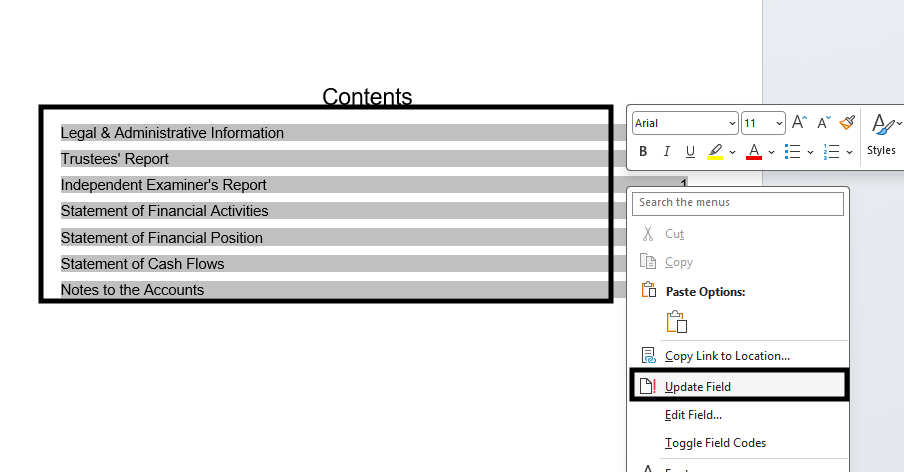
- Right click anywhere within the table of contents
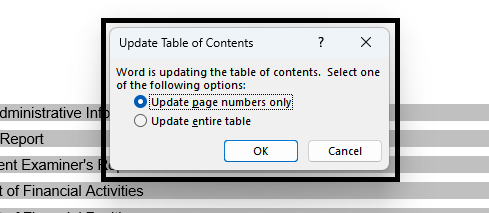
- Then select 'Update Field' in the popup that appears
- In the next popup that appears, click 'OK'
Your table of contents will then display with the correct page numbers.