
Importing LoveGiving Donor Details
This article explains how donor details within LoveGiving can be imported into the Donor Management module within ExpensePlus.
In this article:
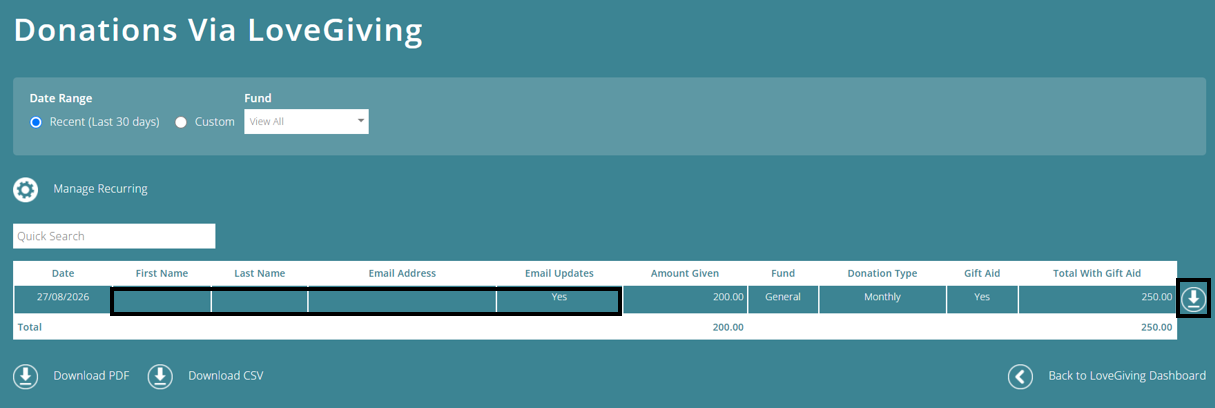
When you receive a donation via LoveGiving, donor details (name, email, contact preference) are held and can be viewed within the LoveGiving Donations report.
Address details are also held within the Gift Aid declaration, which can be viewed by clicking the 'download' button to the right of the donor details:
If you are using the 'Donor Details' tab within the Manage Donors module in ExpensePlus to record donor details, then you are likely to want to import donor details from LoveGiving into ExpensePlus.
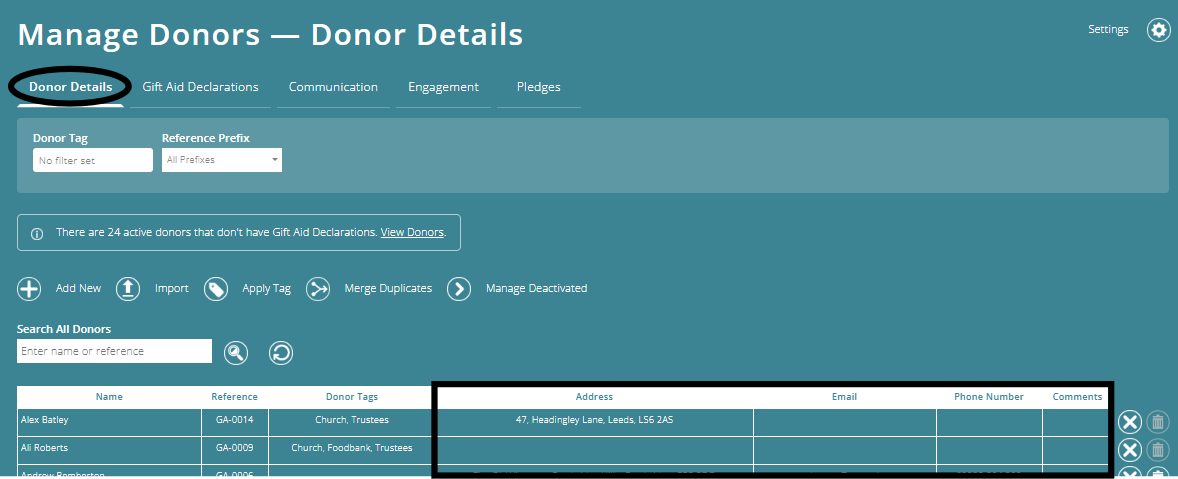
This can be done via the 'import' process that you will find within the Manage Donors screen (more details about this below).
We'd recommend importing donor details from LoveGiving monthly (but you can choose a different frequency if you prefer).
Importing donor information from LoveGiving
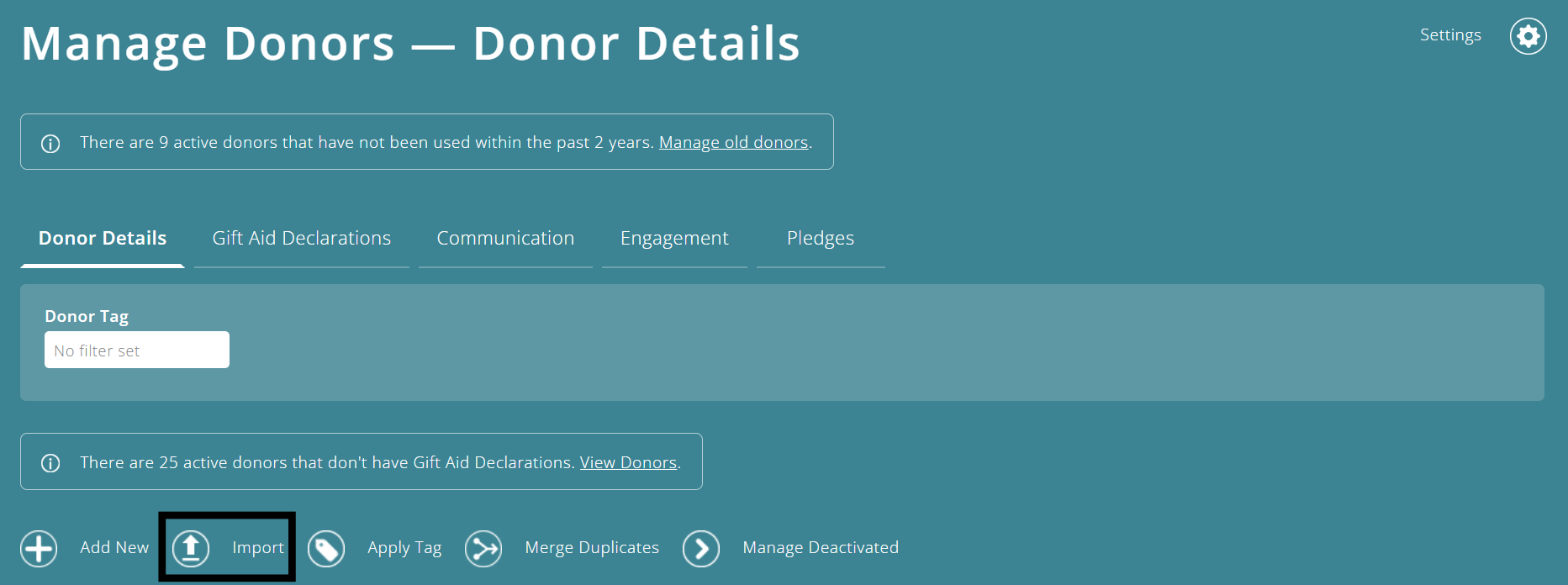
To import donor information, click 'Import'.
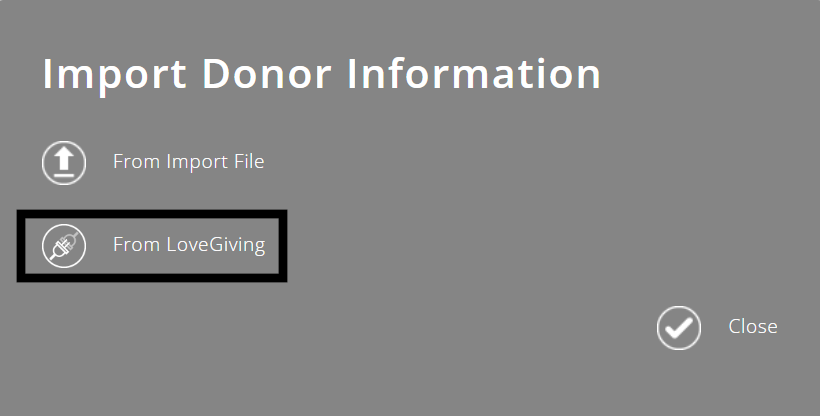
Then click the 'From LoveGiving' option in the pop-up.
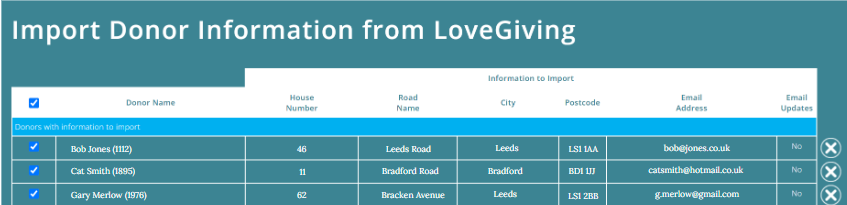
Donors with information to import
The 'Import Donor Information from LoveGiving' screen splits the donors with information to import into two sections: 'Donors with information to import' and 'Donors with information to merge' (see below for more details).
Where there is new donor information to import from LoveGiving, these donors will show in the top section of the table. Typically, you will want to import information for all of these donors.
Donors with information to merge
Where there is already information within the manage donor screen for the donor, and importing would result in information being overwritten, these donors will show in the bottom section of the table.

You can view information that will be overwritten (shown crossed out on screen), enabling you to decide whether to import the information from LoveGiving or not.
To find out how to exclude donors from the import, click here.
Where a donor has information to import from LoveGiving, but this information 100% matches with the donor information held within Manage Donors, the donor won't appear on the import screen (because there isn't any data that requires importing).
Donor mapping
Donor mapping between LoveGiving Donors and the donor within Manage Donors happens when a LoveGiving donation is reconciled in the Bank Reconciliation module the first time it appears in your Stripe Statement.
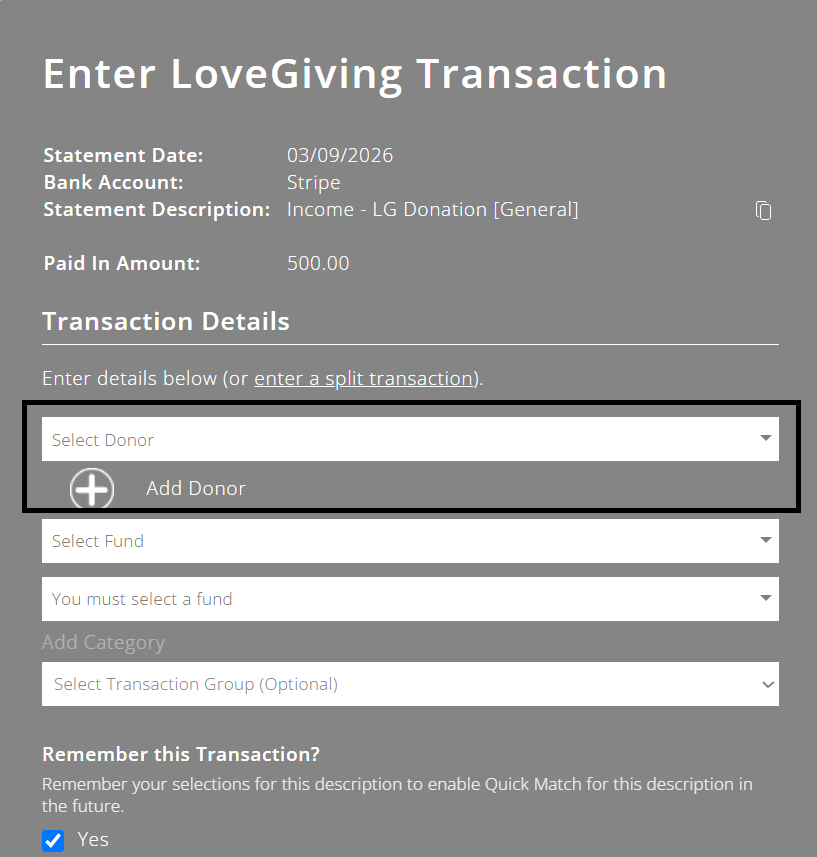
When you match this transaction, the donor record within LoveGiving gets mapped to the donor you select within ExpensePlus.
Donor Names not matching
When importing donor data from LoveGiving, if the name of the donor within LoveGiving doesn't match the donor name within Manage Donors, an information icon will appear to the right of the donors name. If you hover over this icon, it will display the name of the donor as it appears within the Manage Donors.

Typically where the information icon appears, the donor within LoveGiving and the Manage Donor will be the same donor e.g. Amy Kayle and Amelia Kayle, and this warning can be ignored, and the donors information imported.
Where the donor name is that of a different donor (i.e. the LoveGiving donation was matched to the wrong donor when reconciled), we'd recommend you:
- uncheck the checkbox to the left of the donor (to temporarily exclude the donor from the import)
- unmatch any matched stripe transactions that are matched to this incorrect donor (there could be more than one if the donor gives recurring donation)
- delete the incorrect stripe memory record for the donor (only recurring LoveGiving donations)
- reconcile the unmatched donations to the correct donor
- then import the donor information from LoveGiving for this donor
Excluding donors from the import
If you don't wish to import donor information for a particular donor, click the 'X' button to the right of the donor record.

If you click the 'X' button to the right of the donor, this will exclude their information from being imported. If you later change your mind, and wish to import the data, then you will need to manually copy the data from the LoveGiving module into the Manage donor module for the donor.
If you wish to import a donor's information in a future import (just not the current import), instead of clicking the 'X' icon, simply de-select the checkbox for the donor (left hand side of the screen). This will exclude them from just the current import.
To better understand the LoveGiving module, please view the module overview here.