
User access and session controls within ExpensePlus
This article covers the user access and session controls that are in place within ExpensePlus.
Password security
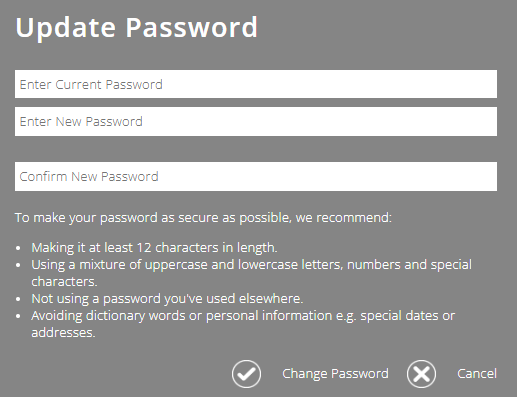
User passwords must have a minimum length of 8 characters. We also use industry-standard technology to check that insecure passwords are not used.
When setting or updating passwords, we also recommend that users:
- Make passwords at least 12 characters in length
- Use a mixture of uppercase and lowercase letters, numbers and special characters
- Do not use a password you've used elsewhere
- Avoid dictionary words or personal information e.g. special dates or addresses
To find out how to set up a new user, click here.
Multi-factor authentication (MFA)
Multi-Factor Authentication (MFA) provides an additional layer of security to ExpensePlus user accounts. MFA is designed to ensure that the user is the only person who can access their account.
The requirement to set up and use MFA is set per user role, meaning that you can require users with more privileged access within ExpensePlus to use MFA, whilst making it optional for those with limited user access.
- Enforced - users with this setting are required to set up and use an Authenticator App and they won't be able to access ExpensePlus if they don't.
- Encouraged - users see a banner message each time they sign in, requesting that they set up and use an Authenticator App. They can still access ExpensePlus if they don't.
- Optional - users won't be required to use an Authenticator App and won't see a banner message. They can still set up an Authenticator App if they choose.
To find out how more about Multi-Factor Authentication (MFA), click here.
Temporary account lock
If an incorrect password is entered 10 times when signing in to ExpensePlus, the account will be locked for 1 hour. This helps prevent brute-force attacks, where someone tries to gain access by repeatedly guessing the password.
When an account is locked, the user is notified via email.
New device detected notification emails
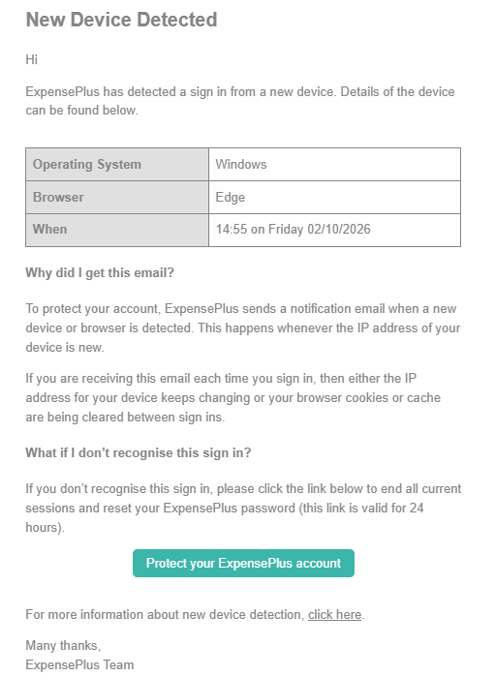
When a new device is used to sign in to ExpensePlus, an automated email is sent to the user's email account to notify them.
Session timeouts
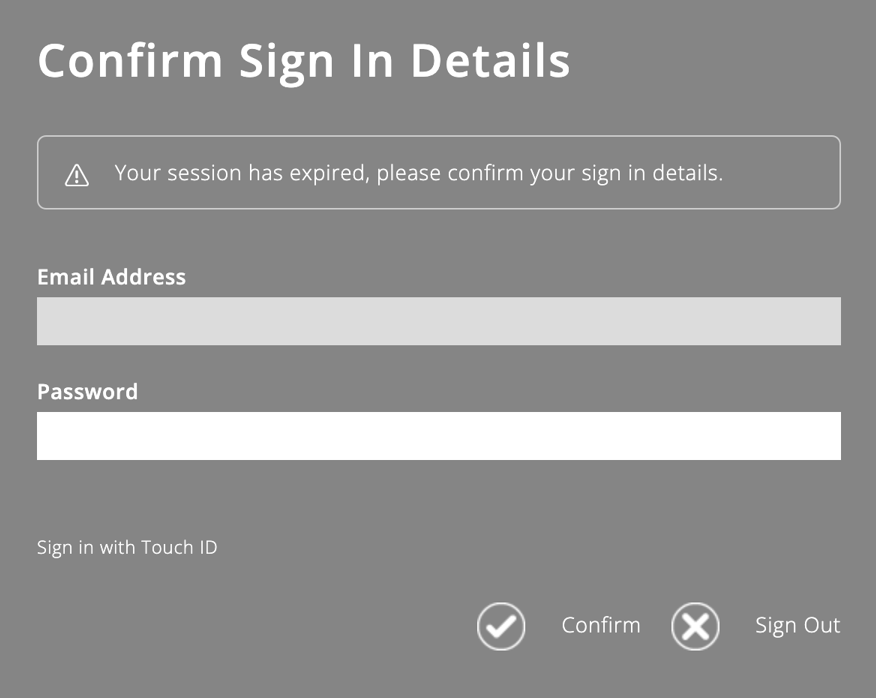
Users are automatically signed out of ExpensePlus after a period of inactivity.
If they were partway through adding or editing a transaction when the inactivity occurred, they will be prompted to re-sign in with their password (and MFA if this is enabled), so that they don't lose any changes.
Setting user permissions
User access and permissions are set within the user settings screen within ExpensePlus. These can be customised, so that each user only has access to the modules and reports that they require for their role.
To find out more about customising user access, click here.
To find out how to revoke a user's access, click here.
It's best to regularly review user permissions to ensure these reflect any role changes that may have happened.
Auto-deactivation of inactive users
Users who are inactive for 12 months are automatically deactivated. This helps ensure only those who still need access to ExpensePlus can sign in.
Deactivated users can be reactivated within the User Settings screen.
It's best to regularly review which users have access to ExpensePlus, and to have a process in place for deactivating users as they leave or no longer need access to ExpensePlus.